
Setting a wallpaper on iPhone
Four steps, about a minute. The part people get stuck on is not setting the wallpaper. It is iOS zooming in on the image afterwards, which happens for one specific reason covered below.
4 steps
Step 1
Download the wallpaper
Tap Download under any design on this site. Safari saves the PNG to your Photos library. On older iOS versions it lands in Files first, and a long press on the image gives you "Save to Photos".
Step 2
Open Settings, then Wallpaper
Settings › Wallpaper › Add New Wallpaper. Choose Photos at the top of the picker, then pick the image you just saved. You can also start from the Photos app: open the image, tap the share button, and choose "Use as Wallpaper".
Step 3
Pinch until the image sits edge to edge
iOS opens the picker slightly zoomed in. Pinch inwards until the design reaches all four edges. If you leave it zoomed, the pattern is larger than it was designed to be and the edges get cut off.
Step 4
Set it for both screens, or just one
Tap Add, then choose "Set as Wallpaper Pair" for both screens, or "Customise Home Screen" to give the home screen a different image or a blur. The lock screen keeps the design; the home screen is where a blurred version often reads better under app icons.
What the difference looks like
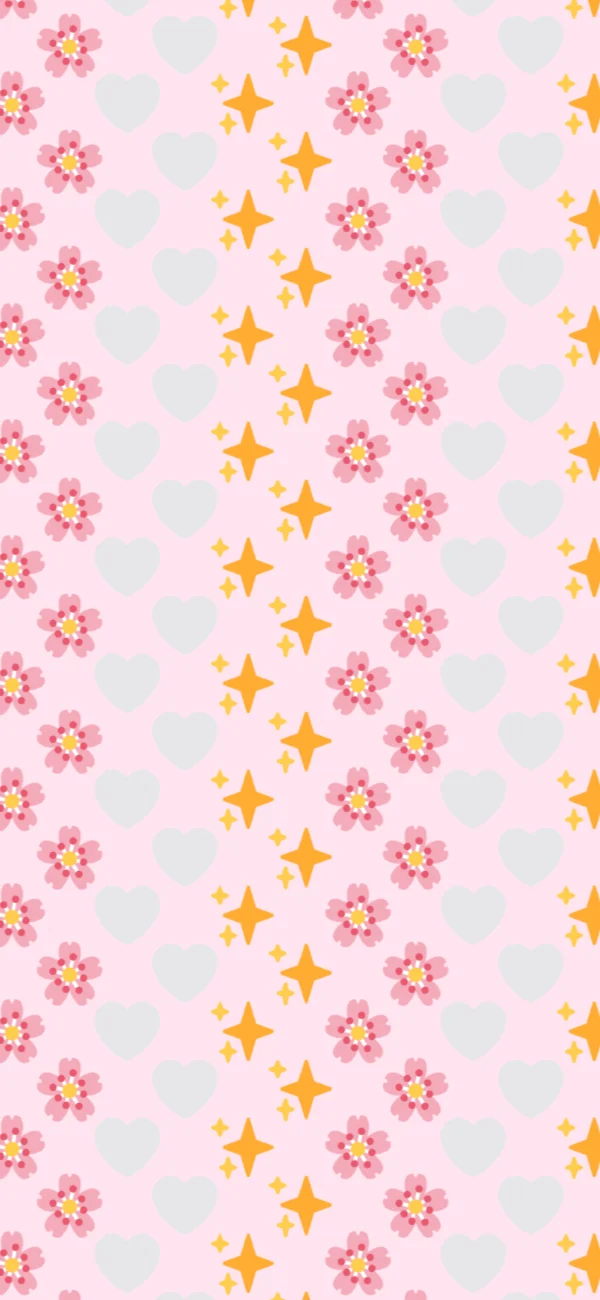
Sized for the lock screen 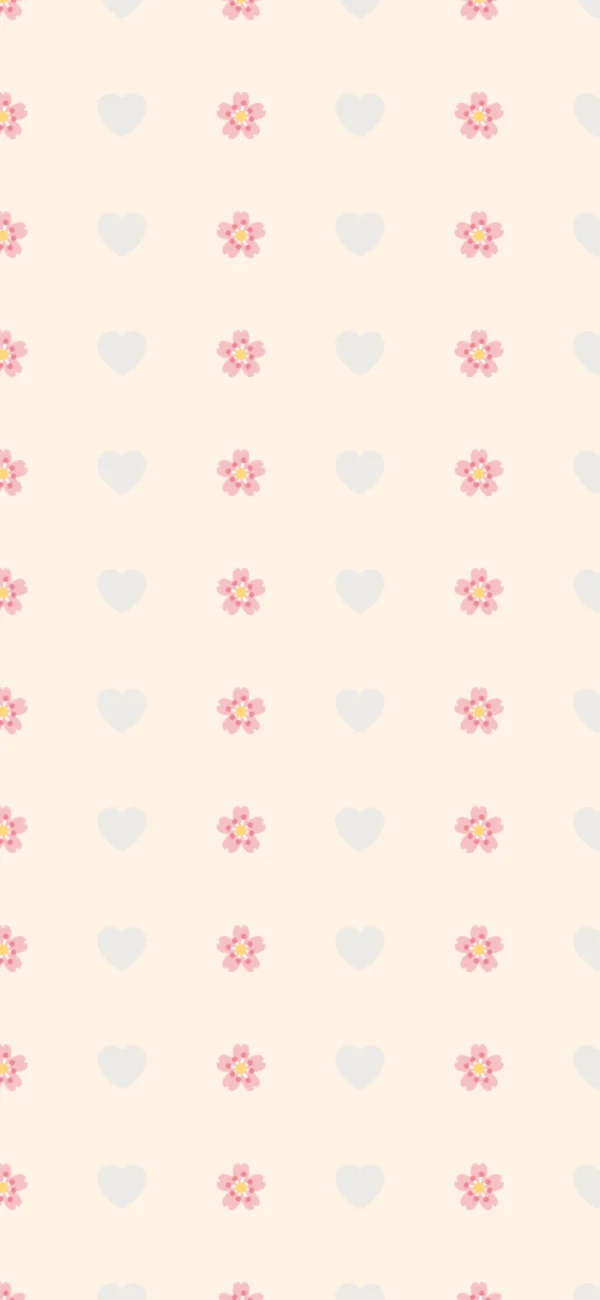
Quieter, for the home screen
The zoom, in detail
Almost every “my wallpaper looks wrong on iPhone” question is this one. iOS presents the wallpaper picker at slightly over 100 % so that the parallax effect has pixels to move into. If you tap Add without pinching, you keep that zoom permanently: the emoji are bigger than intended, the outermost row is off screen, and the spacing you chose is not the spacing you get.
Pinch inwards until the design reaches all four edges. There is no numeric readout, so the tell is the corners: when the pattern’s edge row is fully visible in all four, you are at 1:1.
Lock screen versus home screen
The two screens want different things from the same design.
- Lock screen carries the clock and the date at the top, and two shortcut buttons at the bottom. A dense pattern is fine here as long as the top third is not the most detailed part.
- Home screen sits under a full grid of app icons. Anything busy fights them. Either use a sparser version (fewer emoji, wider spacing, lower opacity) or let iOS blur it.
Both example designs above are the same pattern at two densities, which is the easiest way to build a matching pair: open one, widen the spacing, drop the opacity, download again.
Android, briefly
The steps are close enough to be worth one paragraph. Save the image, open Photos or Gallery, tap the menu and choose “Use as wallpaper”, or long press the home screen and choose Wallpaper. Samsung and Pixel both crop by default in the same way iOS zooms, so the same advice applies: drag until the image fills the frame with nothing cut off.
FAQ
Why does my iPhone zoom in on the wallpaper?
iOS opens every wallpaper slightly enlarged so there is room for the parallax effect, and it keeps that zoom unless you pinch it out. Pinch inwards in the preview until the image touches all four edges. If it will not go far enough, the image is smaller than your screen, so download it again with your exact device selected.
How do I stop the wallpaper looking blurry?
Download at your device's real resolution rather than saving a preview image. A 1290 × 2796 file on a 1290 × 2796 screen is sharp; anything smaller gets upscaled by iOS and the emoji edges go soft.
Can I have a different lock screen and home screen?
Yes. After tapping Add, choose "Customise Home Screen" and pick a second image, a solid colour, or a blurred version of the same design. A denser pattern on the lock screen and a sparser one on the home screen is the combination that usually works.
Where did my wallpaper go after an iOS update?
Lock screens are stored as a set you swipe between, and an update occasionally resets which one is active. Long press the lock screen, swipe to find yours, and tap it. If it is genuinely gone, the image is still in Photos.
Keep looking
- StylesPink emoji wallpapersPink is the most-asked-for emoji wallpaper and the easiest one to get wrong. Give it a mid-brightness ground and one uniform size, and the pattern turns to noise. Each of these picks a background that's very pale or nearly black, one pink family, and two sizes of emoji rather than one.
- StylesBlack emoji wallpapersA dark wallpaper has one job beyond looking good: it has to stay behind the interface. These use a near-black ground, at most two emoji families each, and two sizes of glyph mixed together, never a single stamp repeated, so white text and app icons keep their contrast.